Documentation

Our templates will be simple for anyone to use, complete with a detailed guide for each one and comes with pictures to make it easier to follow.

Thank you so much for purchasing our product. We hope that all your questions regarding the Elementor Template Kit are answered in this Documentation in as much detail as possible. However, if you still need support, do not hesitate to contact us.

How to Use Template Kits

This is not a WordPress Theme. Template kits contain the design data for Elementor only and are installed using the Envato Elements plugin for WordPress. Ensure you’re following this process to import your kit.

1. Import Template Kit

1.1. Install the Elementor Website Builder Plugin

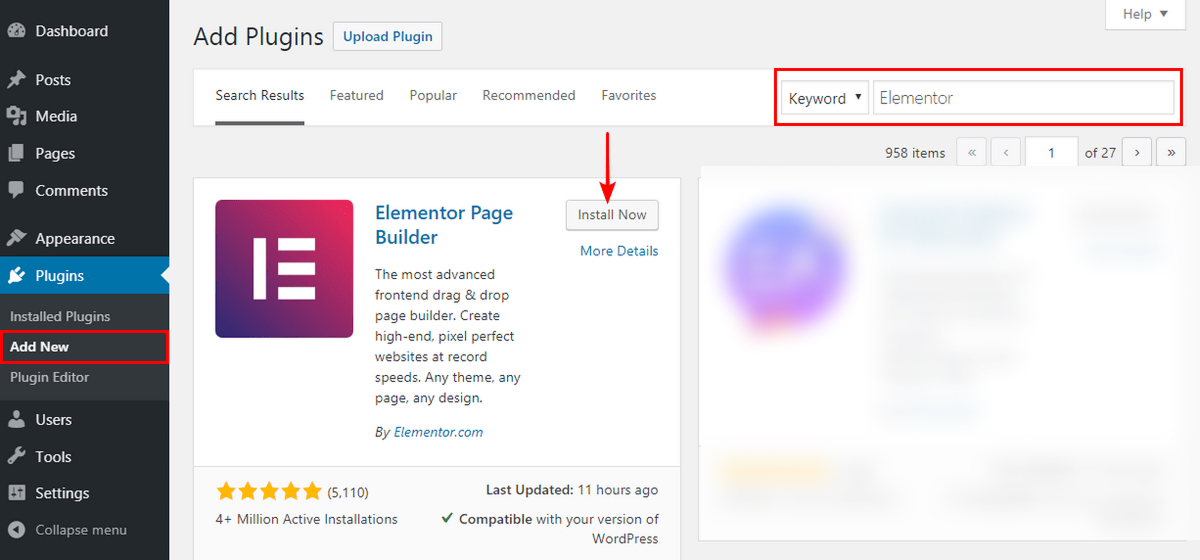
Before you import the template kit, you must first install the Elementor plugin. To do this, go to Plugins > Add New, type the plugin to be installed in the Search Plugins column, namely Elementor Website Builder, click Install Now, then click Activate.
1.2. Import Your Kit

  • Download your kit file and do not unzip it
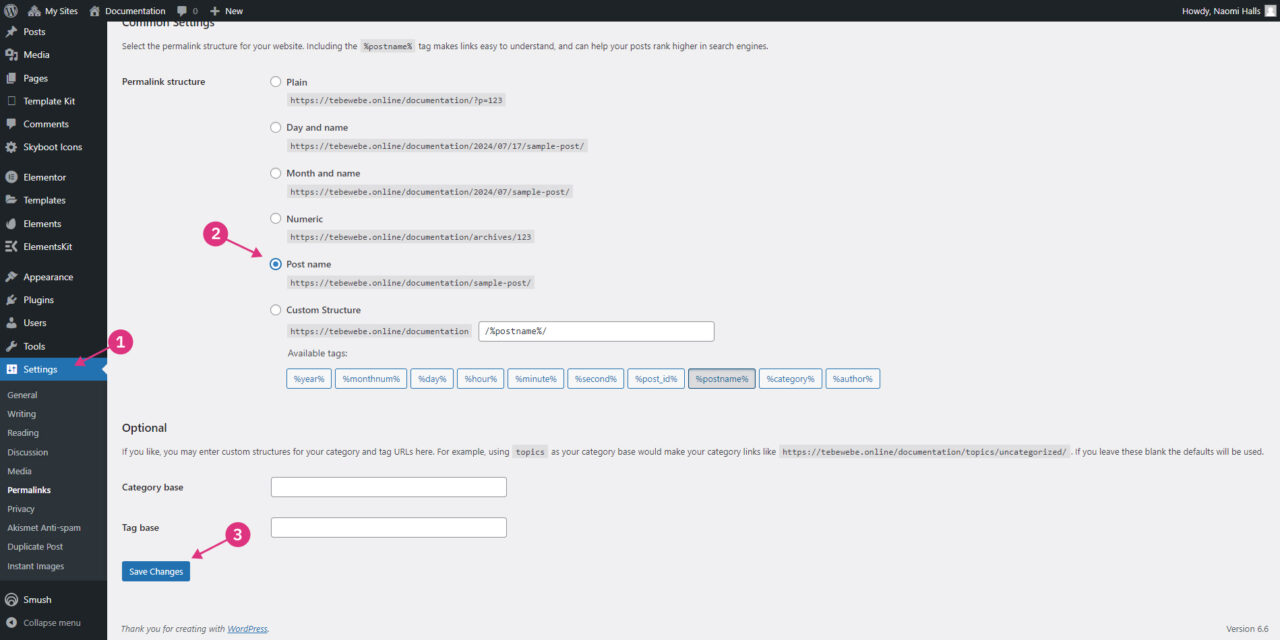
  • Go to Settings > Permalinks and ensure Post Name is selected
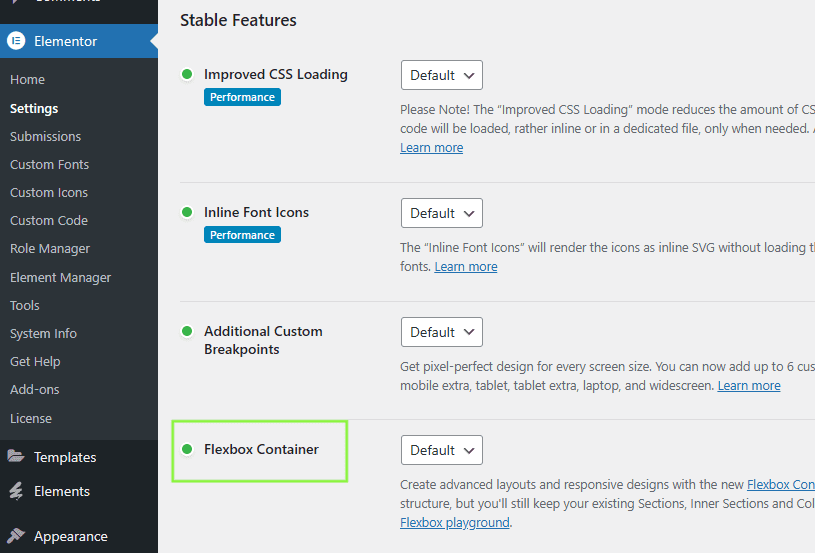
  • Go to Elementor > Settings and click the Features tab and ensure Flexbox Container has a green icon (if not, set to Active)
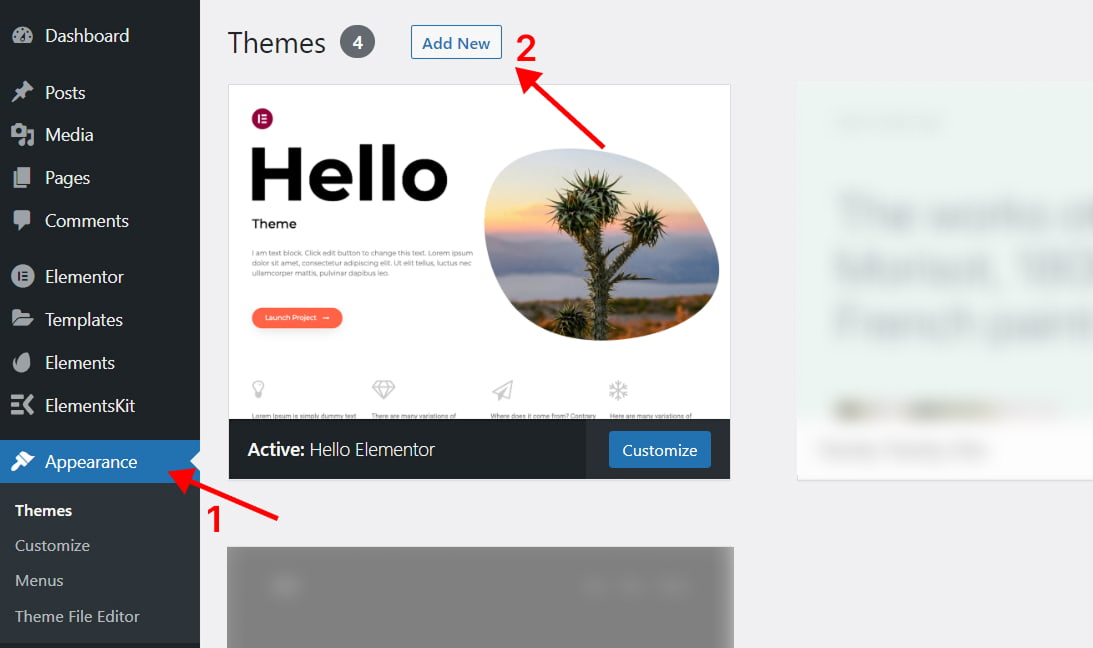
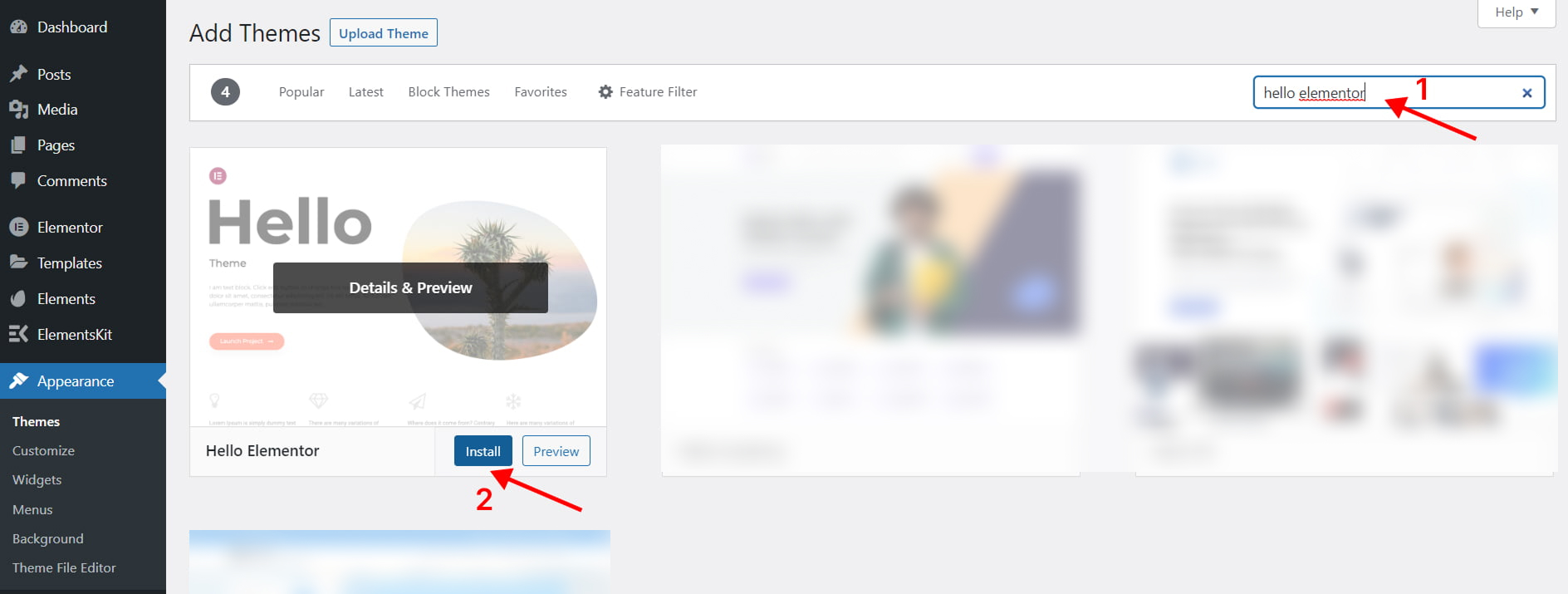
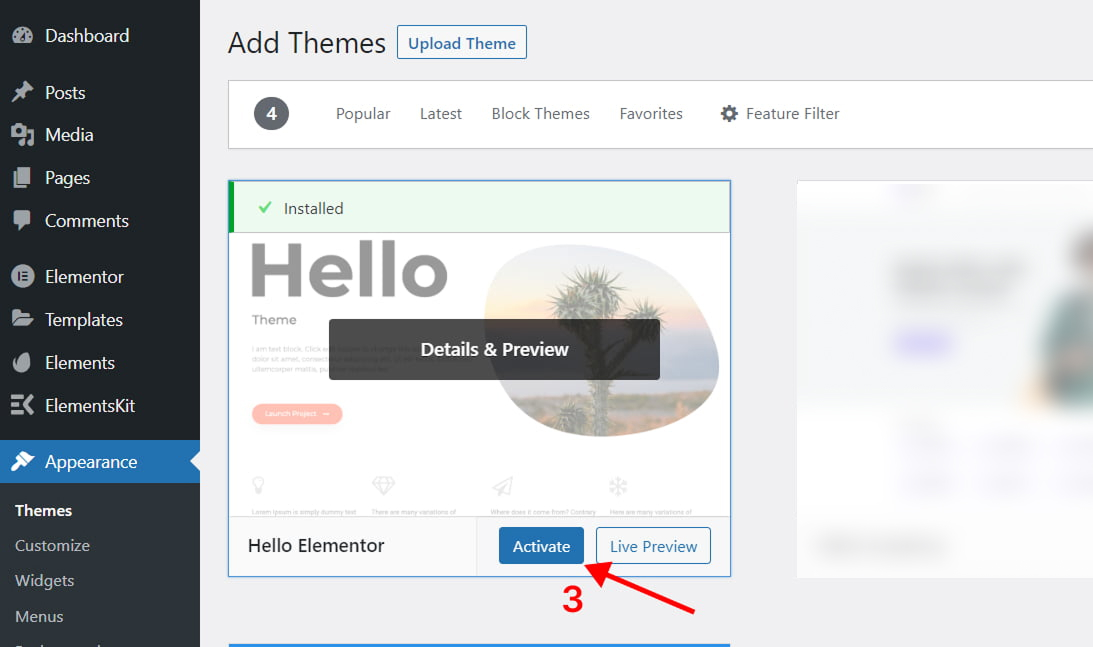
  • Go to Appearance > Themes > Add New and ensure Hello Elementor is installed and activated. This will prompt you to install Elementor if you haven’t already
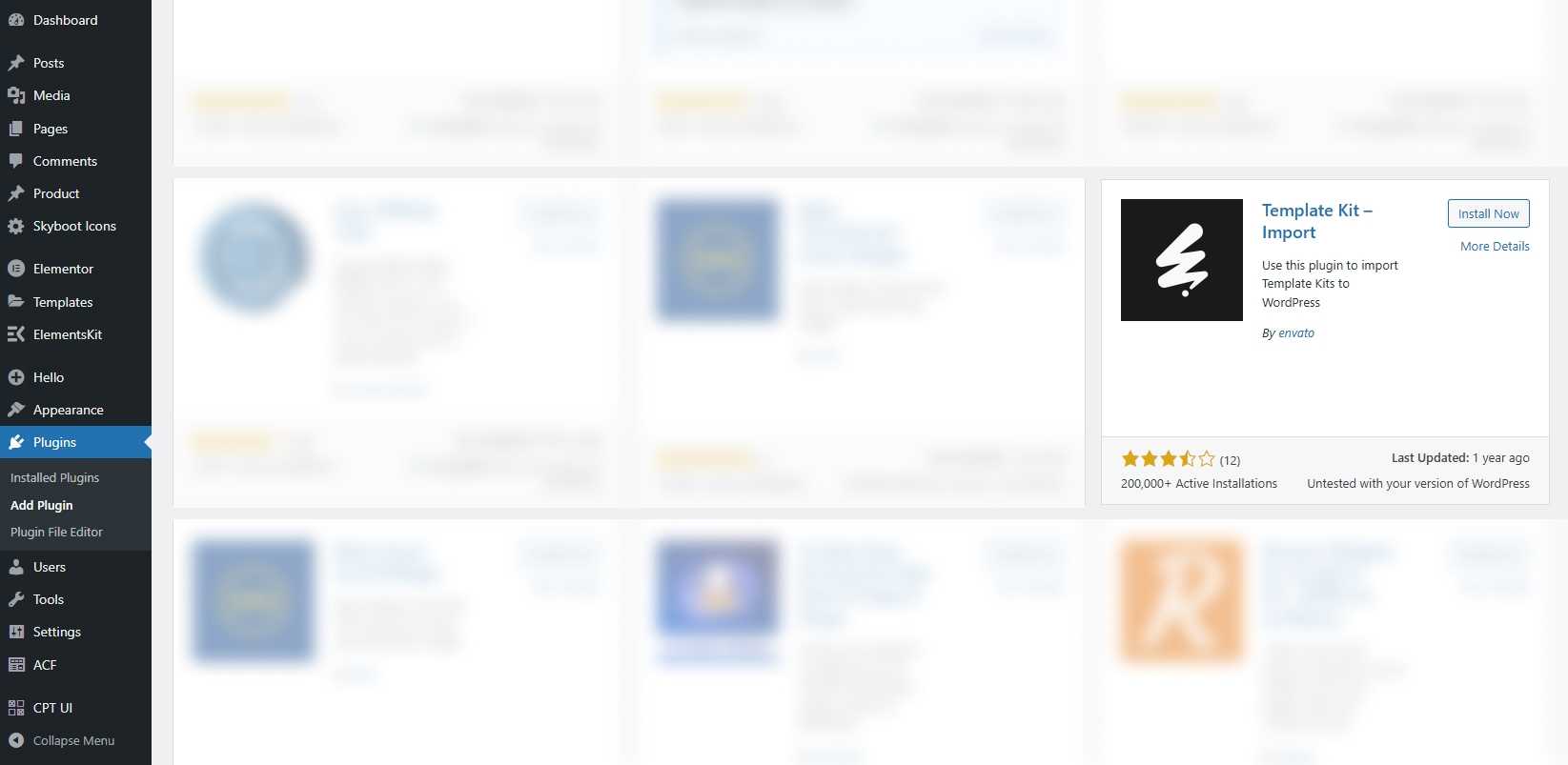
  • Go to Plugins and ensure  Template Kit Import plugin are installed and activated. If your kit requires Elementor Pro, it must be installed now and connected to your account
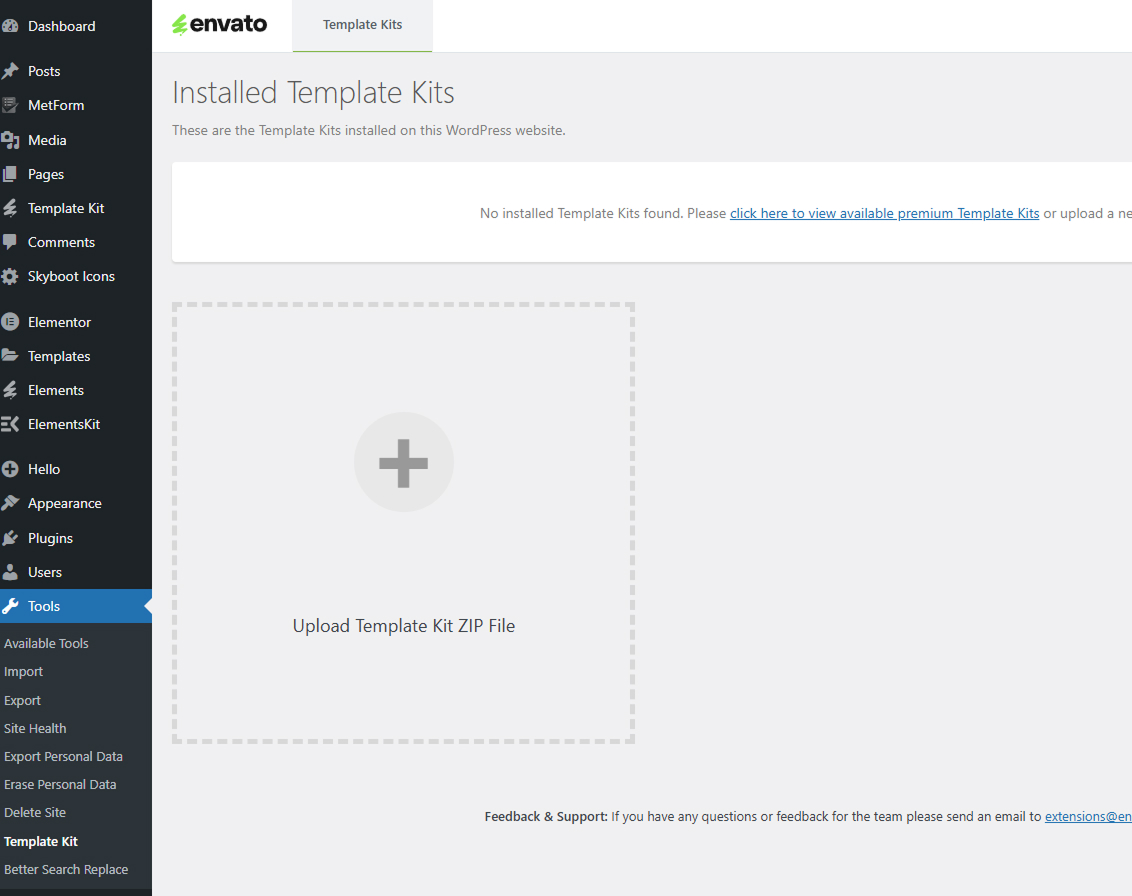
  • Go to Elements > Installed Kits and click ‘Upload Template Kit Zip file’, then click your kit to view all templates
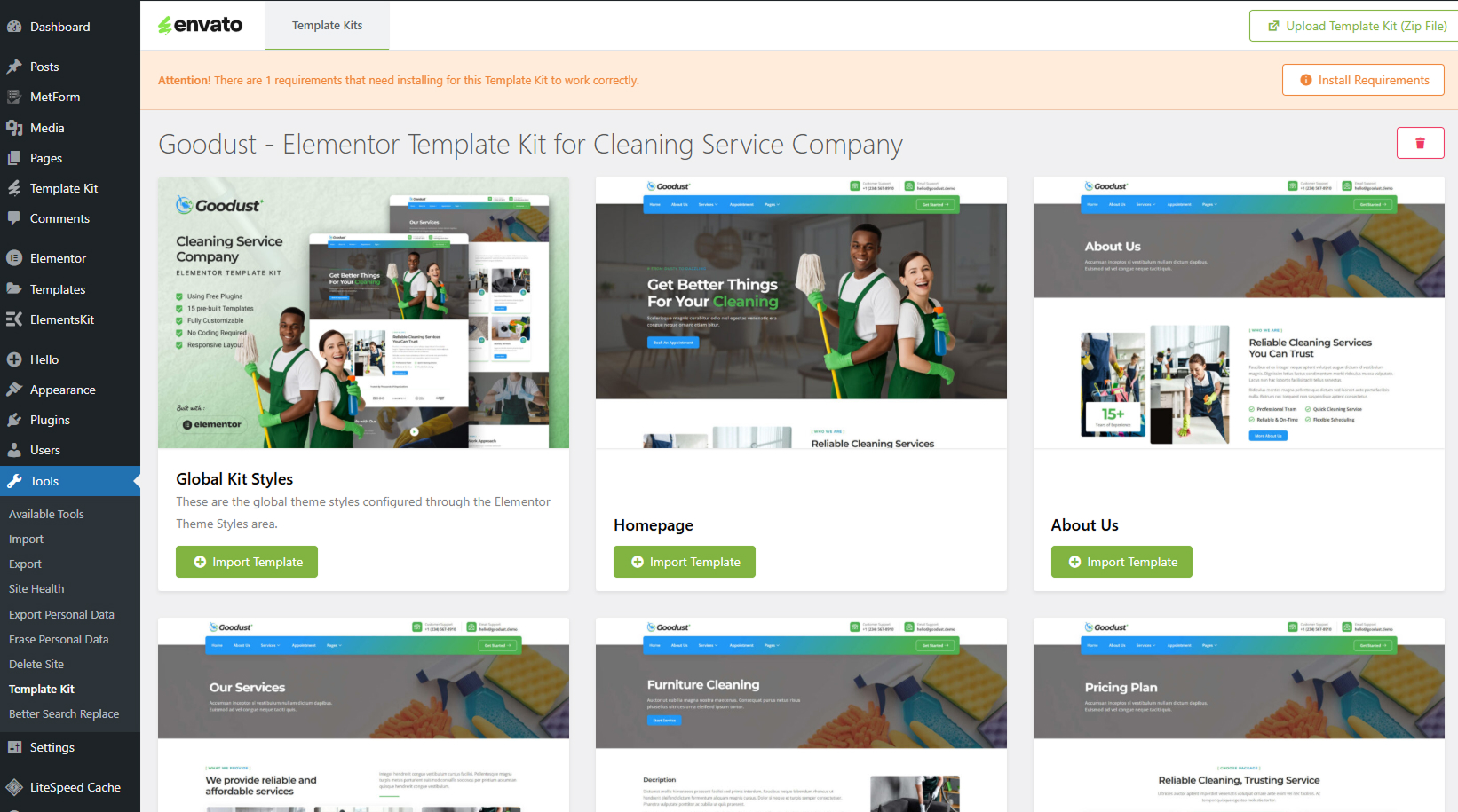
  • Check for the orange banner at the top and click Install Requirements to load any plugins the kit uses
  • Click import on the Global Kit Styles first. This will setup the site settings
  • Click Import on one template at a time in the order shown. These are stored in Elementor under Templates > Saved Templates and are re-used from here

2. Creating Pages

2.1. Import Header & Footer

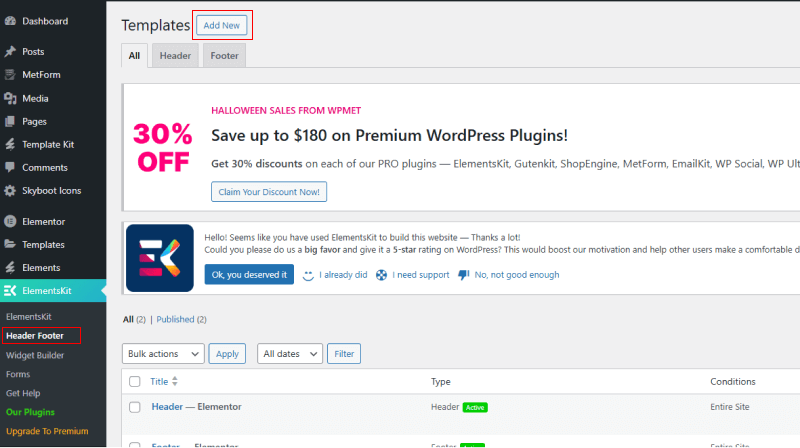
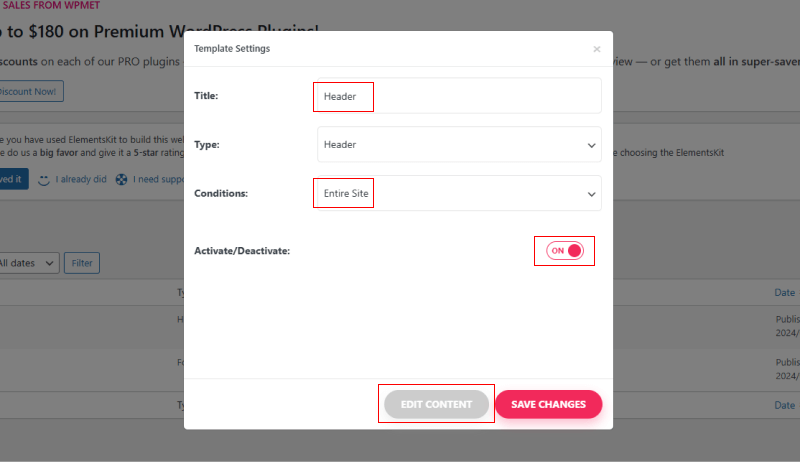
  • Go to ElementsKit > Header Footer and click Add New (if prompted with a wizard, you may click Next through it without taking any action)
  • Title the header, leave Entire Site selected and toggle Activation to On
  • Click the gray Edit Content button to load the builder
  • Click the gray folder icon to access My Templates tab and select the header template to import, select your menu in the nav element and click Update
  • Repeat for Footer

2.2. Import Page Template

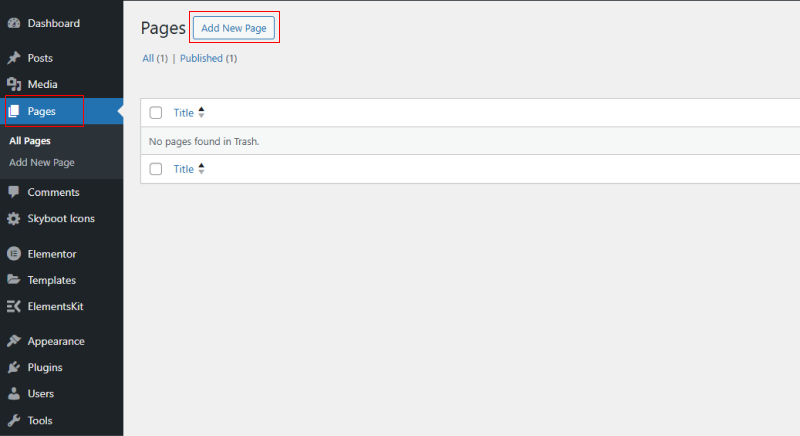
  • Go to Pages and create a new page and click Edit with Elementor
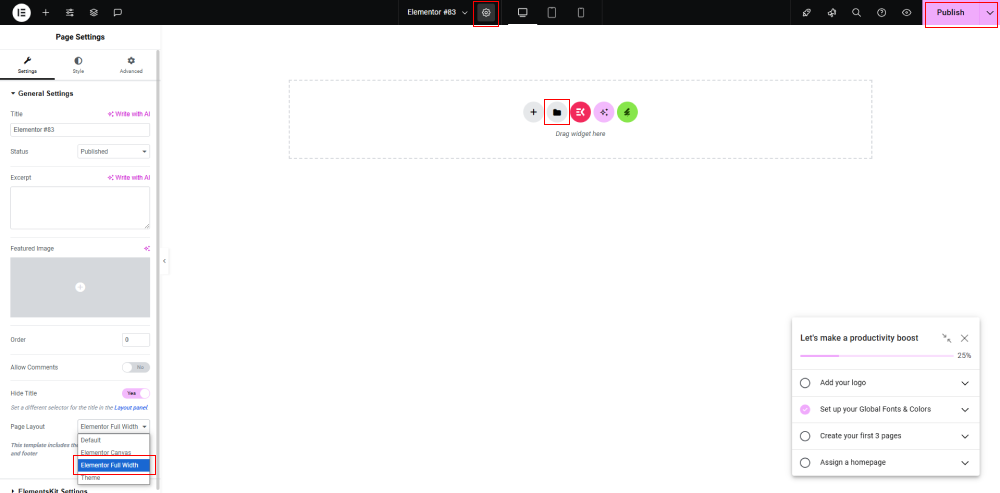
  • Click the gear icon at middle-top of the builder to view page settings and choose Elementor Full Width and hide page title
  • Click the gray folder icon to access My Templates tab and then Import the page you’d like to customize
  • The home page is set under Settings > Reading by selecting Static Front Page

2.3. Import Form Template

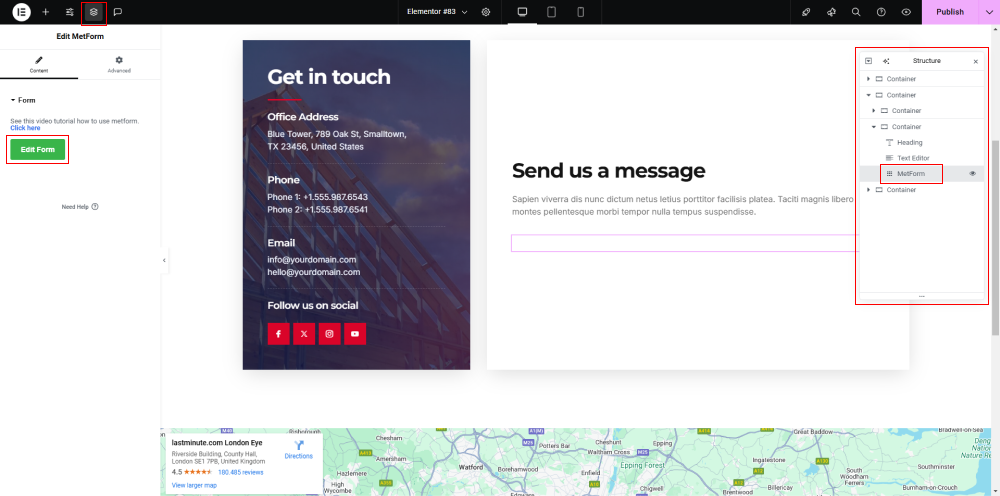
  • Go to the page template where the form appears, edit with elementor, and at the elementor editor window click the layer icon at the top-left of window to enable the Structure
  • Locate and select the Metform widget and click Edit Form. Choose New, then Edit Form. The builder will appear
  • Click ‘Add Template’ grey folder icon, and go to My Templates tab.
  • Choose your imported metform template, then click ‘Insert’ (click No for page settings)
  • Once the template is loaded, make any desired customizations and click Update & Close. The form will appear in the template
  • Click Update
  • Repeat for other form

2.4. Setting Up Some Plugin

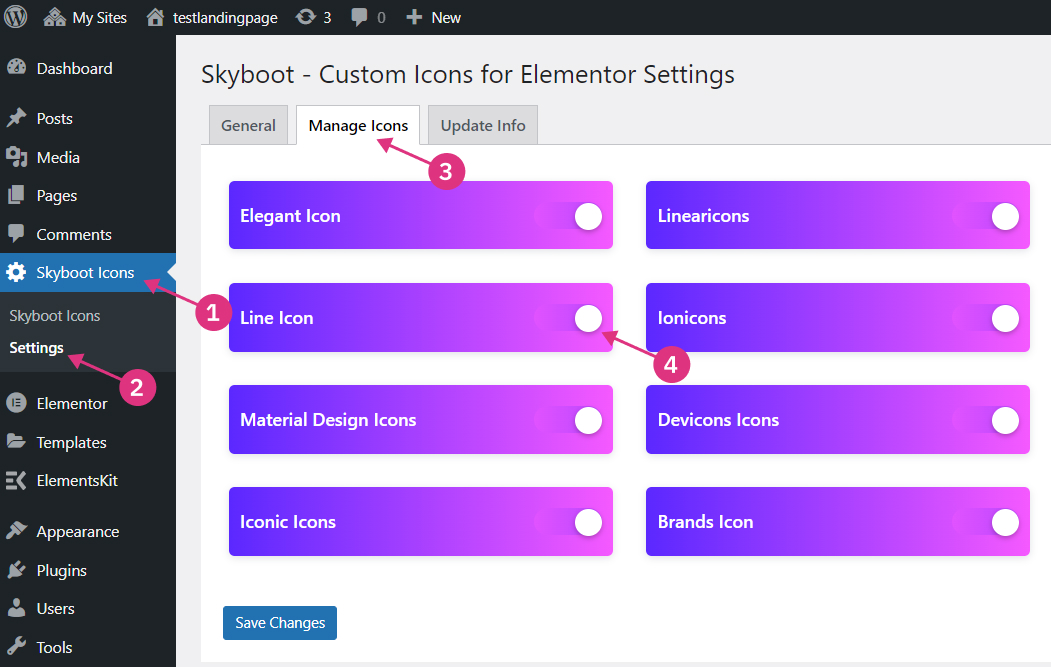
From the Dashboard, select the Skyboot Icons > Settings menu. Click the Manage Icons tab and slide all the icon type buttons to the right.
2.5. Setting Up OffCanvas (Only for certain templates)

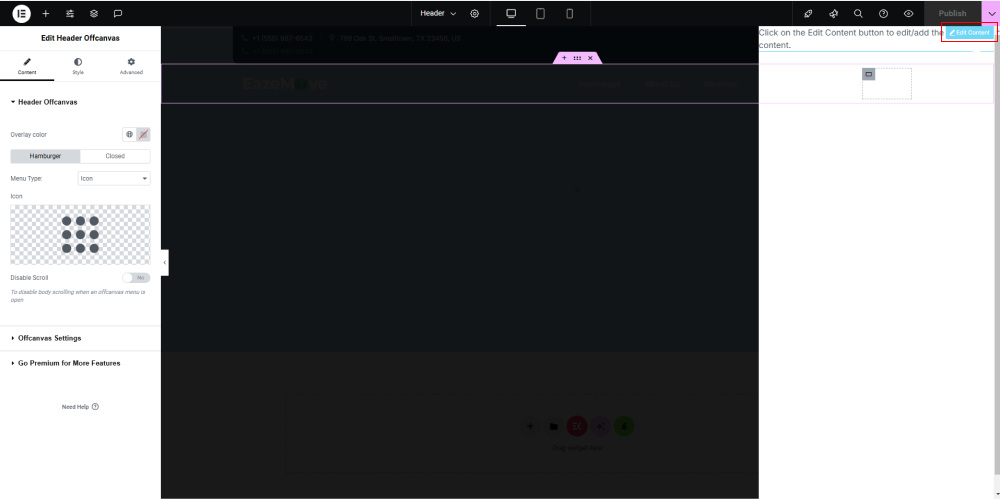
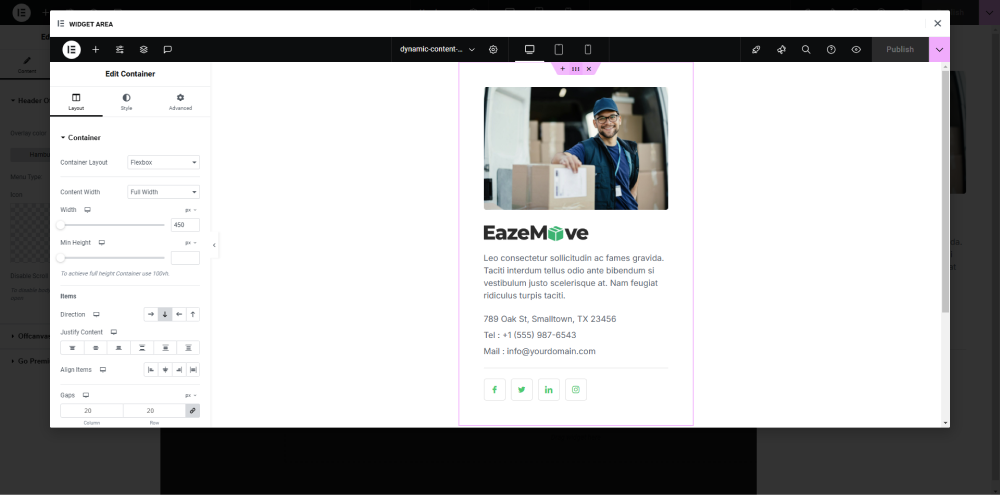
Click the Offcanvas widget until the hover display appears. Then a small blue button will appear that says ‘edit content’, click it to enter the builder window. While in the builder, click the gray folder, and import the Offcanvas template, then update.
3. Editing Site Settings

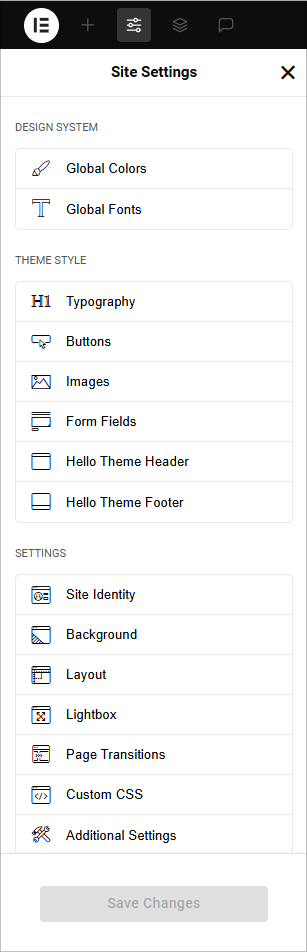
Edit Color, Font, Typography, Button and Form Fields, etc

Simply "Edit with Elementor” any page or post, click the hamburger menu icon in the upper left corner of the Elementor Widget Panel and click on Site Settings. Here you have options to control the Design System which consists of Global Colors and Global Fonts, and Theme Builder which consists of Typography, Buttons, Images, and Form Fields settings.